
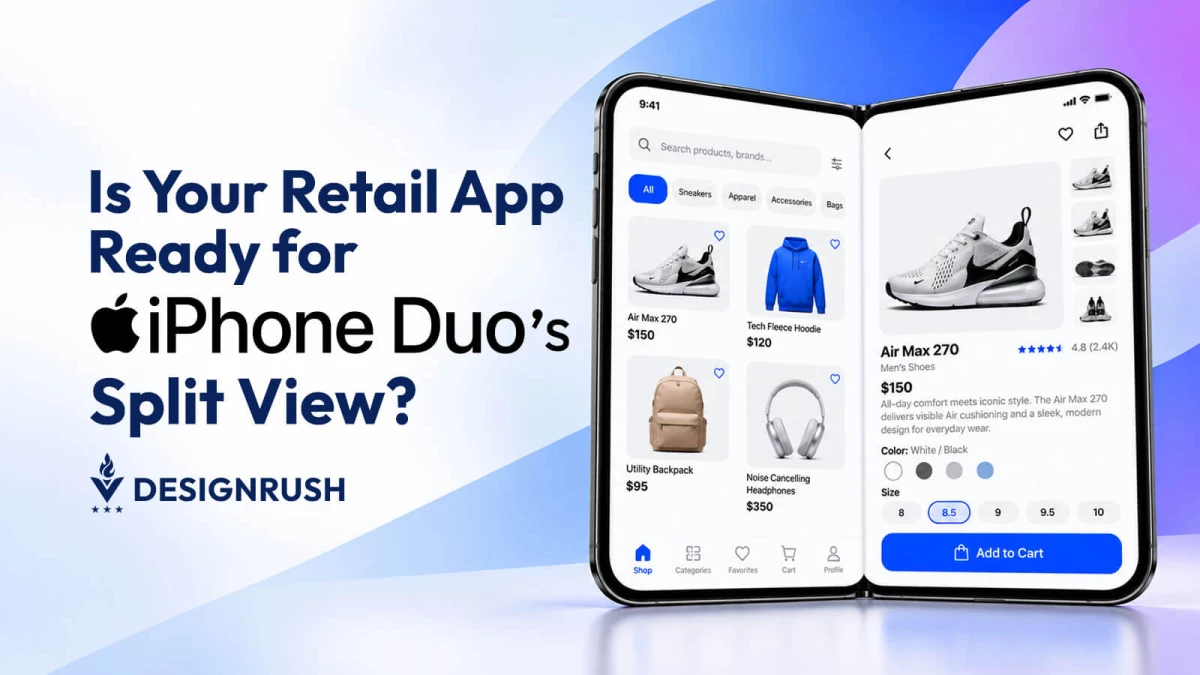

Apple’s marketing for the new iPhone Duo has focused a lot on its Split View feature.
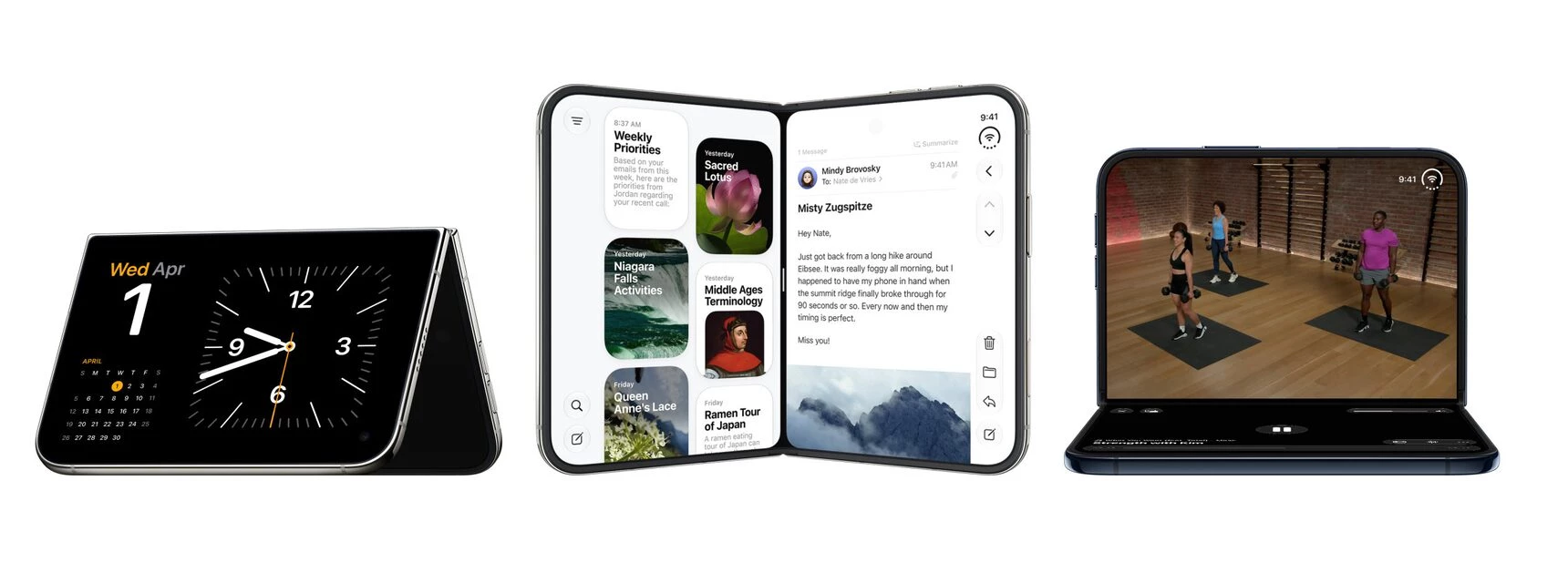
But one of the more interesting ways Split View has been marketed is comparison shopping, with every app opened in Split View conveniently getting a fixed half of the Duo's inner display.
However, this convenience may have an unintended tradeoff.
Can shoppers still move from browsing to checkout easily when each app gets only half the display?
Product photos, prices, and payment controls built for a full-width screen may not fit as intended.
Retailers that haven’t adapted their apps will need to prioritize fixes to the buying path in upcoming updates, before a cramped interface costs them a sale.
What Should a Retail App Fix First for Split View?
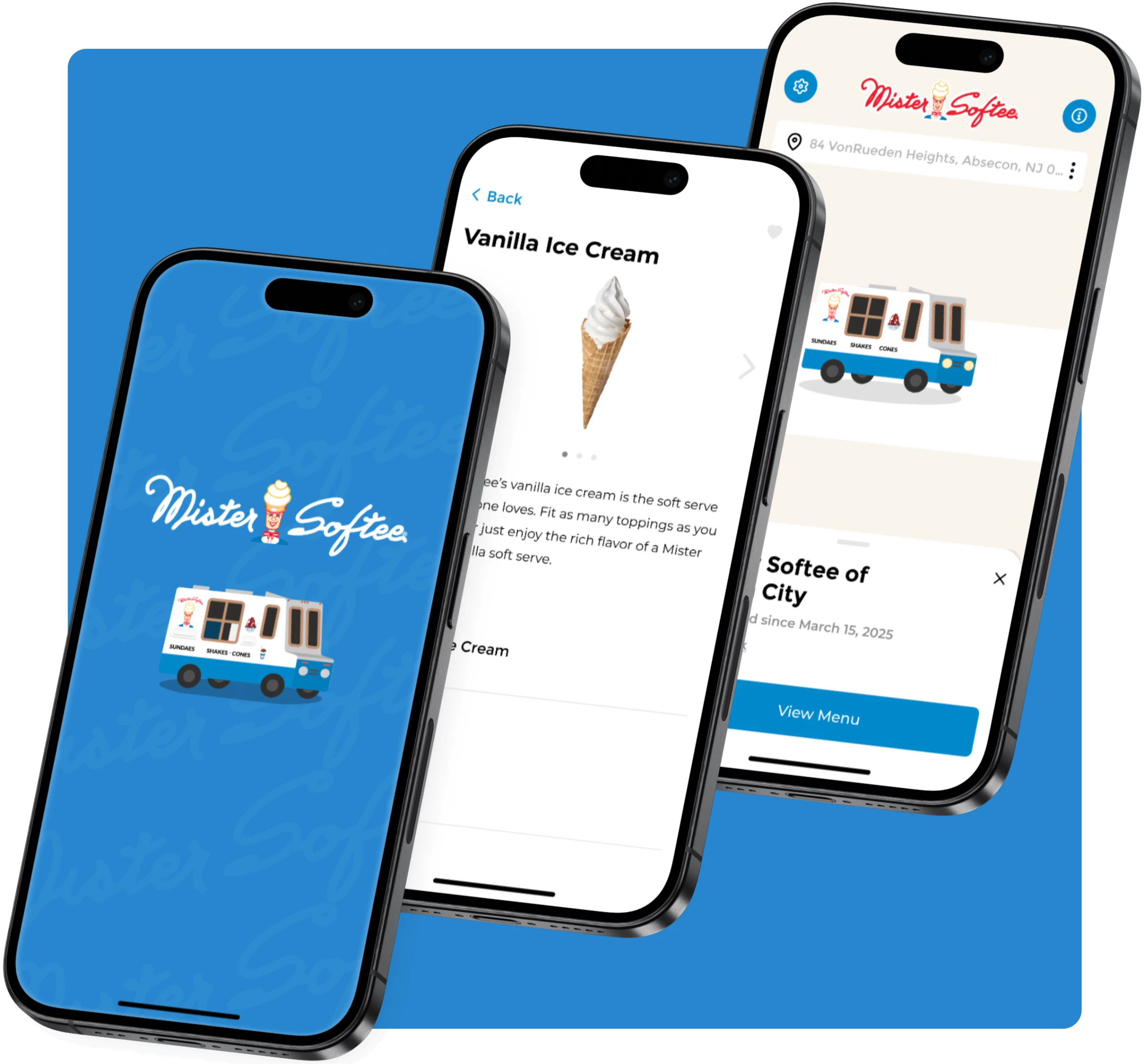
Chop Dawg, an app development company that has launched 500+ apps since 2009, has worked on consumer apps including Mister Softee’s truck locator, regional menus, and timed push alerts, as well as Digi-Go’s scan-and-go checkout.
Organizations that have trusted Chop Dawg include Wawa, Hilton, Six Flags, the NFL, NASA, and the U.S. Navy.
Products built by Chop Dawg are used by more than one billion people worldwide.
Founder and CEO Joshua H. Davidson recommends starting with the screens where money changes hands: product grids, product details, cart, and checkout.
“In Split View each app gets a fixed half of the inner display, roughly the size of the outer screen, so anything built on a full-width assumption (hard-coded widths, image carousels sized for one phone width, custom bottom navigation) is what cramps or clips first,” he says.
“Safe areas also go asymmetric in Split View, so symmetrical padding shows up as misaligned edges.”
Shoppers still need to read prices, choose sizes, and get through checkout without fighting the layout.
Accenture’s 2026 agentic commerce report found that 85% of consumers are likely to abandon an online purchase out of frustration or indecision.
In addition, over three in four consumers feel overwhelmed by too many options.
The report doesn’t measure Duo use, but the warning applies to any buying flow that adds friction at checkout.
What Can Wait for a Second Update?
Apple released developer support in stages.
Xcode 27.1 beta, with iPhone Duo simulator support, appeared on September 18, exactly five weeks before the phone’s October 23 availability.
The first decision for a retailer and its custom app development company is which SDK the app uses.
Apple says apps compiled with iOS 26 or earlier run on Duo, but remain at their familiar phone size, leaving space around the app on the inner display.
Apps compiled with iOS 27 resize to use more of the screen; iOS 27.1 adds edge-to-edge use and places standard navigation and toolbar controls vertically beneath the status bar.
“First, compile against the current SDK and check that Split View doesn’t break the buying path,” Davidson says.
“Then schedule the fuller inner-screen experience, including edge-to-edge layouts and controls that adapt to the display.”
That way, the outer screen behaves like a regular phone, so the entire app doesn’t need a new design.
Davidson estimates that a Duo-ready update for an existing app means a design pass on the relevant screens followed by one development cycle, then a regular App Store update.
A full inner-display design adds about 20% to 30% to design effort compared with a standard phone app, while Split View fixes are only one part of that work.
React Native, which Chop Dawg used to build the Mister Softee app, can also keep development work relatively small.
The timetable depends on the app’s existing layout and code, so a full rewrite shouldn’t be the default assumption.
Which Five Checks Should a Commerce Team Run?
App and eCommerce leads can use this checklist to decide what has to ship first:
1. Compile against the current SDK. Check how the app renders on the inner and outer displays. An older version may open, but still sit in a phone-sized window with unused space around it.
2. Open the Duo simulator in Split View. Walk the full purchase path from browsing to payment.
3. Find full-width assumptions. Review fixed widths, product carousels, custom bottom navigation, and any screen that expects the phone to be the only app in view.
4. Check touch and reading comfort. Test tap targets, type sizes, product labels, price details, and the cart at half width. Check the edges on both sides, not only the left.
5. Split launch work from follow-up work. Prioritize any defect that blocks product selection or payment. Put bigger inner-display changes in a second update if they don’t fit the first release.
The priority is to fix anything that interrupts product selection or payment, then schedule the remaining layout work according to its value and the team’s capacity.
The app that wins the sale in Split View is the one that still lets a shopper find a size, read a price, and pay without fighting the layout.